Printing for Impact
"Wood is elusive in its patterns, changing in its moods, and only partly predictable in its ways." — James Krenov
Printing a desk ornament vs. printing something that's going to take a hit are different jobs.
Almost every default in your slicer (the program that turns a 3D model into instructions for the printer) was picked for the ornament.
Luckily, only a handful of settings really matter for impact.
A printed part has a grain
A regular 3D printer builds a part as a stack of layers, and each layer sticks to the one below by partly remelting the boundary between them. Within a layer you've got solid plastic. Between layers you've got a weld, and that weld is weaker, sometimes a lot weaker, depending on the material and your settings.
So a printed part isn't equally strong in every direction. It has a grain, a lot like wood, and it'll split along that grain if you load it the wrong way. The good thing is you can decide which way the grain runs when you place the part on the print bed.
Don’t overlook it.
Which way to lay the part down
The short version is that layer lines shouldn't run parallel to the face that gets hit.
You want every hit running along the layers, never pushing across the seams between them. Lay a weapon flat on the bed and that's what you get. Stand it on its edge and every hit pushes straight across those seams, which is where it splits.
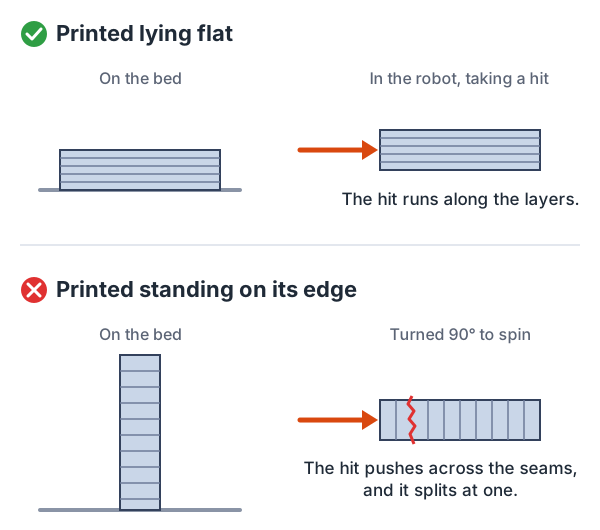
Same shape, same plastic, same settings. The only difference is which way it sat on the bed.
That one choice matters more than the shape you spent an evening designing, and since it's a single option in the slicer, nothing else in the build pays off so well for so little effort.
In practice that means two things:
- Weapons print flat. A bar or disc lying on the bed takes hits across its layers instead of between them.
- Chassis plates print flat too. That's usually easiest anyway, and it means the plate resists bending in the direction it'll actually get bent.
Walls and infill
The chassis (the robot's main body, the frame everything else bolts to) and the weapon want opposite settings, which is why generic advice online can sound like it contradicts itself.
For the chassis, lean on walls rather than infill. Walls (the slicer also calls them perimeters) are the solid outlines the printer traces around the edge of the part, and infill is the lattice it fills the inside with. Six to eight walls with 30 to 40 percent gyroid infill (a wavy lattice pattern) beats three walls at 90 percent infill, and it weighs less. Walls are continuous plastic running around the part, so they carry load like a shell. A lattice is good at resisting being crushed and not much else.
For the weapon, go nearly solid, 90 to 100 percent. On a thin part the walls make up most of the cross-section anyway, so the walls-versus-infill question mostly disappears and the simple answer is to make it solid. That's what the people who designed these robots actually run, and the builders who skipped it are the ones posting photos of shattered blades.
It also pays to fillet every inside corner in CAD (your design software) before you print, meaning round it off instead of leaving a sharp angle. Sharp inside corners concentrate stress, and that's where cracks start. Put a generous one where each weapon lobe meets the hub, since that's the corner that takes the most stress on every hit.
When the infill number stops mattering
There's a catch in that advice, and you'll probably only notice it by weighing your own parts.
The printer lays walls down from each surface inward. Six walls with a 0.4mm nozzle is 2.4mm from each face, so 4.8mm of solid plastic before there's any inside left to fill. Give the slicer a part that's only 3mm thick and there's no middle to put infill into. The part comes out solid, the gyroid setting does nothing, and the infill number in your profile is just decoration.
That's only true for some shapes, though, and mixing them up can mislead you. It holds for narrow ribs and thin shells, where wall loops come in from both sides and meet in the middle. It doesn't hold for a broad, flat area printed lying down. There the thickness comes from solid top and bottom layers with an infill core in between, and the wall loops only ever run around the outline. Most chassis parts have both kinds of area, so one number for the whole part will lead you astray.
So check it one feature at a time, not for the whole part at once. Average wall thickness is roughly twice the volume divided by the surface area, and your slicer will give you both numbers. Compare that to twice your wall count times your nozzle width. Anywhere a feature is thinner than that, it prints solid no matter what you set. Anywhere it's thicker, the infill is doing real work.
Then check it against a scale, since the scale settles the argument. A part that weighs 78 percent of what it would weigh solid has an infill core, whatever the geometry suggested.
This is worth keeping in mind on every build, for two reasons.
First, your weight estimate will be off in a predictable direction. A part you figured at 35 percent infill can come off the printer close to its fully solid weight. If a build lands heavier than your budget and you can't see where the grams went, this is usually where.
Second, where a part really is solid, wall count is the only thing left to adjust, and cutting it has a real cost. On a thick part, dropping infill mostly removes lattice you weren't counting on in a hit anyway. Where a feature has no lattice at all, every wall you drop is actual structure coming off the robot. That's a real trade-off, so make it on purpose, not at eleven at night because you're desperate to find a few grams.
Wall count also matters more than you'd think on a part with lots of detail. Walls follow every outline, so a plate full of slots, pockets and ribs has far more wall than its footprint suggests, and dropping one loop takes material from all of it at once.
The parts that really do have an infill core are the thick ones. On most small robots that's the weapon, which you were already going to print solid.
Choosing a material
The list of allowed materials in a plastic class is short, usually PLA, PLA+, PET, PETG, ABS and ASA. PLA is the easy, plant-based plastic most home printers start with, and PLA+ is a family of tougher blends built on it. PET is the plastic in water bottles and PETG is a printable version of it. ABS is the plastic LEGO bricks are made from, and ASA is a close, more weather-resistant relative. Here's how they compare:
- PLA+ is stiff and cheap, prints easily, and tends to dent and gouge before it breaks. It's good for weapons, where stiffness helps pass the energy into whatever you hit, and it's what most robot designers actually use.
- PETG has a reputation for bending instead of shattering, but the guides written for combat robots warn against it. More on that at the end.
- ASA and ABS handle impact better than PLA but warp badly without an enclosed printer, and a warped chassis plate is a wasted print. They're only worth it if your printer is enclosed.
We tripped over this twice.
First, you can spend a week comparing PLA, PETG and ABS and never realize PLA+ is its own thing, because most comparison articles leave it out. It's usually the right answer, and it's easy to miss completely.
Second, there's no standard behind the name. Every manufacturer's PLA+ is its own blend with its own additives, so one brand's published strength numbers can't be compared to another's. Pick a brand that publishes real data and stick with it. Your slicer profile gets tuned to that specific blend, not to "PLA+" in general.
It's worth skipping composite filament, the kind with fibers mixed in. Carbon fiber PLA and glass-filled ABS sound like upgrades, but plastic classes usually ban them outright. They're also more brittle, so they'd be a poor pick even where they're allowed.
No after-treatments
Elsewhere in the printing world, when a part breaks, people often reach for annealing (baking the part to strengthen it), acetone smoothing, or some other after-treatment that improves how well the layers bond.
Plastic-class rules generally ban all of that. Annealing, acetone soaking and boiling are named directly. It's an easy rule to break without meaning to, because everywhere else it's normal advice.
So shape and slicer settings are all you've got, and that's the class working the way it's meant to. It's also a big part of why orientation matters so much here, since you can't fix it afterward.
Reading a failed part
Three failures will cost you a print, and each one looks like something it isn't at first.
If a part splits cleanly along a flat plane, the usual cause is the layers separating rather than a weak design, and the fix is to reorient the part. If it cracks starting from a corner, the corner is probably concentrating the stress, even though it looks like the wall was too thin, and a fillet fixes it. And if a large flat part warps up off the bed, you're usually looking at a material problem rather than a leveling one, typically ASA or ABS that wants an enclosure.
To tell the first two apart, look at the break. A failure along the layers is flat and smooth and follows one plane. A real overload failure is rough and irregular and follows wherever the stress went. The first one you fix in the slicer, the second one you fix in CAD, and the fixes have nothing in common.
Printing spares
The whole point of plastic is that a broken part means a reprint instead of a purchase, but that only helps if you've actually printed the spare.
While the printer's set up, print the weapon three times, plus a spare chassis plate. It only costs filament and printer time you were already spending, and at an event, one spare part in a box is the difference between a ten-minute swap and going home.
Go deeper
- Maker's Muse's combat-robot slicer profile, written up by Hackaday, is the most specific published recipe for tough PLA parts. In short, it's 100 percent concentric infill, the alternate-extra-wall setting so infill seams don't line up, 0.4mm wall lines against 0.8mm infill lines, deliberate over-extrusion on the inside only so the outside dimensions stay accurate, and ironing every top surface. He sells the profile as a pay-what-you-want 3MF file, which is worth it if you use the same slicer he does.
- Servo Magazine on maximizing printed strength for combat robots covers the same settings in a written magazine feature, if you'd rather read the reasoning than download a profile.
- iRobotics at Illinois keeps a guide to materials and settings written specifically for 1lb robots.
The sources split on one material, PETG. Among hobby printers it has a reputation for bending instead of shattering. The iRobotics guide, written by people who fight one pound plastic robots, says flatly not to use it for frames or weapons, because when it fails it cracks instead of denting the way PLA+ does. Lab tests don't rescue it either. In a standard impact test, printed PLA and PETG took about the same size hit before they broke. PETG did bend further first, which sounds like a win. But it didn't survive a bigger hit than PLA, it just flexed more on the way to breaking.
So go with PLA+. It's what the combat guide recommends, and it's what most of the designs you'll print were tested in. If you're curious about PETG, try it once you have a PLA+ robot to compare it against, not on your first build.
Comments ()